Getting Started — Build Your Own VibeKeypad
This guide walks you through building your own VibeKeypad from scratch. Total cost is around $30-40 and takes about 15 minutes to set up.
What You Need
1. Programmable Keypad
Recommended: 6-Key Programmable Keypad
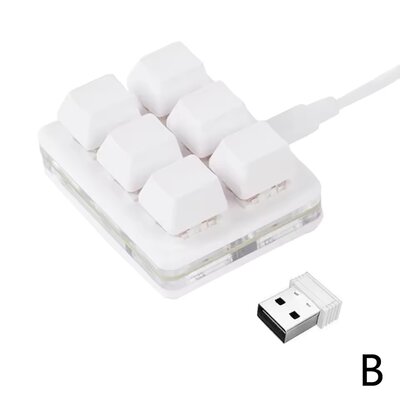
Key features:
- 6 mechanical keys + rotary encoder
- USB-C rechargeable
- Bluetooth & 2.4GHz wireless
- Configurable via sayodevice.com
2. Transparent Keycaps
Recommended: Double Layer Transparent Keycaps (12pcs)
These keycaps have a transparent top layer where you can slide in printed icons.
3. Printed Icons
Print your own icons on regular paper. Cut to 12×12mm squares and slide them into the transparent keycaps.
Assembly Steps
Step 1: Unbox and Charge
- Unbox your keypad
- Connect via USB-C to charge (takes ~1 hour for full charge)
- While charging, prepare your icons
Step 2: Print Icons
Download and print icon templates:
Print at 100% scale (no scaling). Cut to 12×12mm squares.
Step 3: Replace Keycaps
- Gently pull off the original keycaps
- Open the transparent keycaps (they have a removable top layer)
- Place your printed icons inside
- Snap the keycaps back together
- Press onto the switches
Step 4: Configure Keys
- Open sayodevice.com in Google Chrome
- Connect your keypad via USB
- Click "Connect" when prompted
- Map each key to your desired shortcut
- Click "Save" to write configuration to device
See Claude Code Preset or Cursor Agent Preset for recommended configurations.
Step 5: Enable Bluetooth (Optional)
For wireless use, see Enable Bluetooth guide.
Tips
Icon Printing
- Use a laser printer for sharper results
- Matte paper works better than glossy
- Print a few extras in case of mistakes
Keycap Fit
- The transparent keycaps should fit standard MX-style switches
- If too tight, gently sand the stem
- If too loose, add a tiny piece of tape
Battery Life
- Expect 2-4 weeks on a single charge with moderate use
- The keypad auto-sleeps when not in use
- Wake by pressing any key
Troubleshooting
Keypad not recognized
- Try a different USB cable (must be data-capable)
- Try a different USB port
- Restart Chrome and reconnect
Keys not working after configuration
- Make sure you clicked "Save" in SayoDevice
- Disconnect and reconnect the device
- Check that the target application accepts your shortcuts
Bluetooth not pairing
- Make sure RF mode is set to "BLE&Auto" in SayoDevice
- Disconnect USB before pairing
- Remove old pairings from your computer and try again
Next Steps
- Quick Start Guide — Fast setup overview
- Claude Code Preset — Optimized for Claude Code
- Cursor Agent Preset — Optimized for Cursor
- Enable Bluetooth — Wireless setup